> For the complete documentation index, see [llms.txt](https://docs.primelister.com/llms.txt). Markdown versions of documentation pages are available by appending `.md` to page URLs; this page is available as [Markdown](https://docs.primelister.com/features/cross-lister-tool/sync-listings.md).
# 🔄 Sync Listings
Sync Listings automatically imports all your active listings from connected marketplaces into a single Inventory Manager.
### What is Sync Listings?
**Sync Listings** is a PrimeLister feature that automatically imports all your active listings from your connected marketplaces into a single, unified **Inventory Manager**. Instead of managing your items separately on each platform, everything lives in one place — organized, up-to-date, and easy to navigate.
PrimeLister uses AI to build your inventory automatically, so there's no manual data entry involved.
***
### Why Use It?
If you sell on multiple platforms, keeping track of what's listed where can get messy fast. Sync Listings solves that by giving you one central view of your entire inventory across all your stores.
* 📦 **Everything in one place** — See all your listings from all connected platforms in a single inventory view.
* 🤖 **AI-powered import** — PrimeLister automatically pulls in your listings and organizes them. No copy-pasting, no manual work.
* 🔁 **Always up to date** — Sync whenever you want to make sure your inventory reflects your latest listings.
* 📊 **Better insights** — With your full inventory synced, you get a clearer picture of your stock across platforms.
***
### Supported Platforms
Platform
Status
Sync Limit
Poshmark
✅ Available now
5,000 listings
Mercari
✅ Available now
No limit
Depop
✅ Available now
No limit
Grailed
✅ Available now
No limit
Etsy
✅ Available now
No limit
Shopify
✅ Available now
No limit
eBay
✅ Available now
No limit
> ⚠️ **Why is Poshmark limited to 5,000?** Poshmark's closet page only displays up to 5,000 items, so PrimeLister can only access and import the items that Poshmark itself makes visible. This is a Poshmark-side limitation, not a PrimeLister one.
***
### How to Use Sync Listings
#### Before You Start
Make sure you have:
* ✅ **PrimeLister Chrome Extension** installed — [Download here](https://chromewebstore.google.com/detail/cross-listing-poshmark-to/eepbhjeldlodgnndnjofcnnoampciipg)
* ✅ At least one **store connected** to PrimeLister
***
#### Step 1 — Connect Your Store
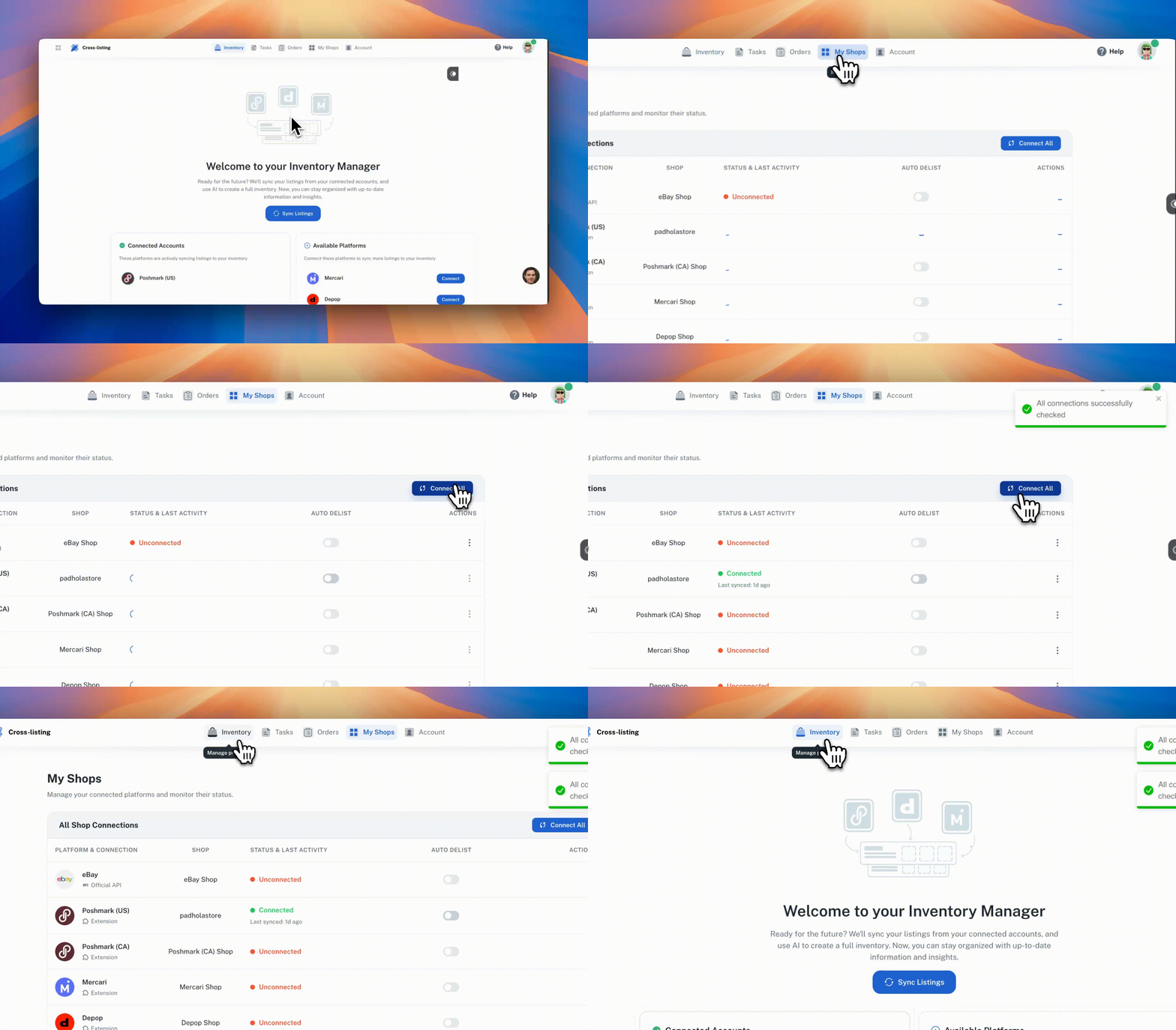
If you haven't connected your store yet, go to the **Inventory Manager** and connect the platforms you sell on. Each connected platform will appear under **Connected Accounts**.
To add more platforms, click [**Connect**](https://app.primelister.com/my-shops) next to any platform listed under **Available Platforms**.
***
#### Step 2 — Sync Your Listings
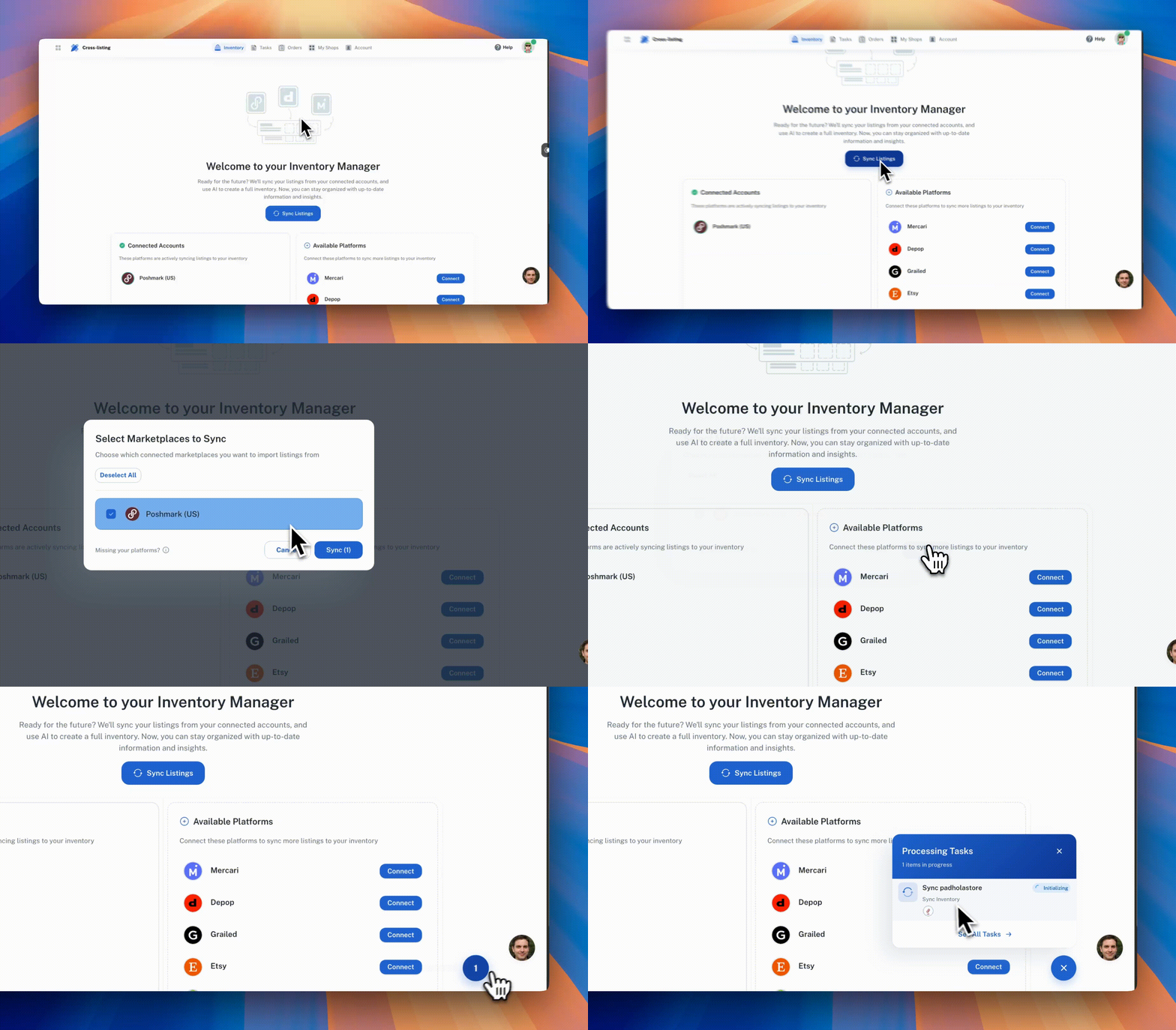
Once your store is connected, click the **Sync Listings** button at the top of the Inventory Manager page.
PrimeLister will automatically import all your active listings from your connected accounts — up to 5,000 items per store.
***
#### Step 3 — Track the Task Results
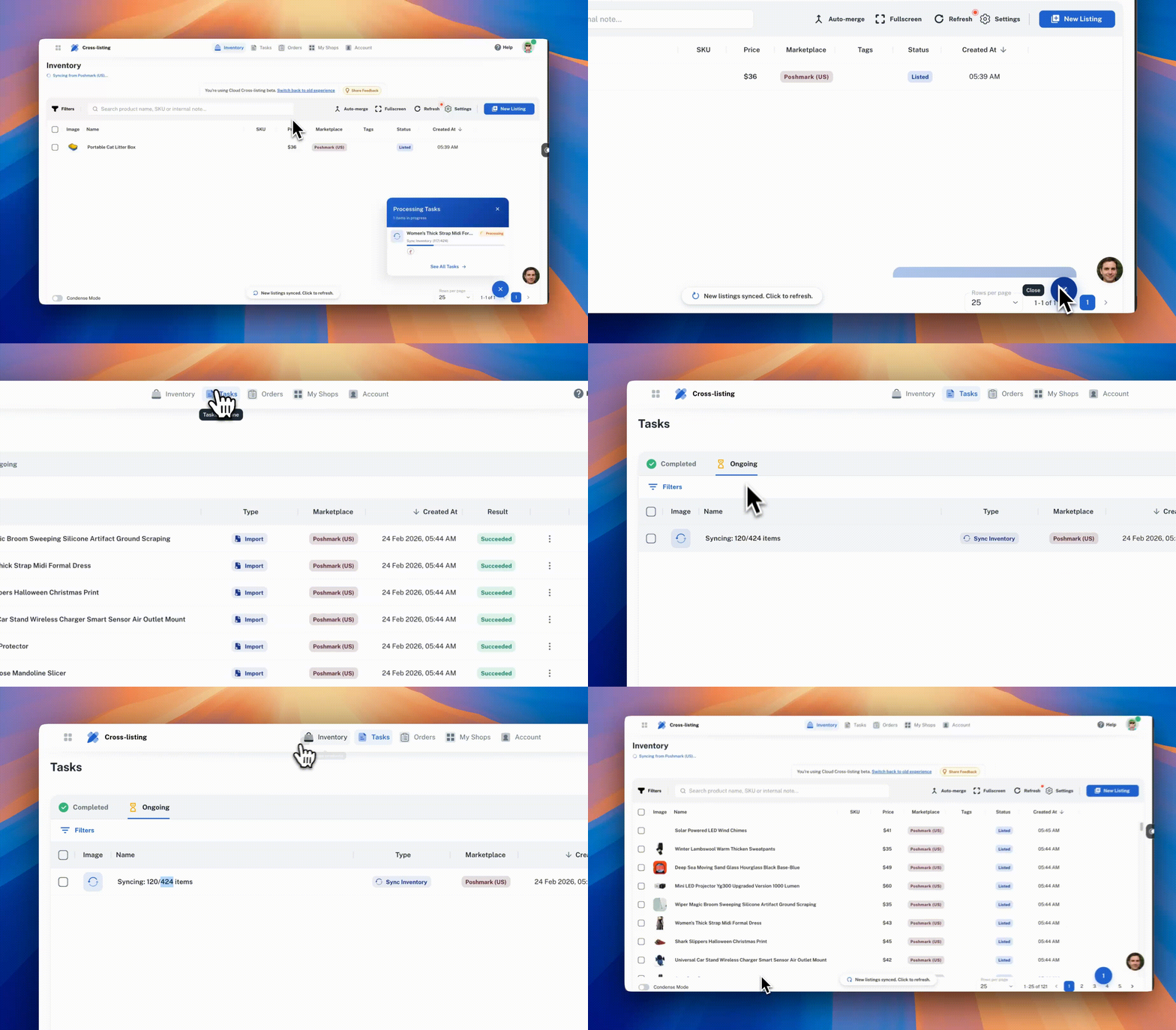
After syncing, you can monitor the progress and results of your sync under the **Tasks** tab in the top navigation bar. Each sync run is logged as a task, so you can see exactly what was imported, how many listings were processed, and whether anything needs your attention.
#### Step 4 — Manage Your Inventory
After the sync is complete, all your listings will appear in your Inventory Manager. From here you can:
* 📋 Browse and search your full inventory across all platforms
* 🔄 Re-sync at any time to pull in new or updated listings
* 📊 Get a clear, organized view of everything you have listed
***
### FAQ
**How often should I sync?** \
Sync whenever you add new listings or make significant changes to your store. There's no automatic sync schedule — you control when it runs.
**Is there a limit on how many listings I can sync?** \
No, there's no limit on Mercari, Depop, Grailed, Etsy, Shopify, or eBay — all of your active listings will be imported. The only exception is Poshmark, which is capped at 5,000 items because that's the maximum number of listings Poshmark itself shows in the closet page.
**Why can't PrimeLister import more than 5,000 items from Poshmark?** \
Poshmark's closet page only loads up to 5,000 listings, even if your closet has more. Since PrimeLister imports the items Poshmark makes visible, anything beyond the 5,000-item cap can't be accessed. This isn't a PrimeLister limit — it's a Poshmark-side restriction.
**Can I connect multiple stores from the same platform?** \
Yes. You can connect multiple accounts and each one will sync into your inventory separately.
**Does syncing affect my live listings?** \
No. Sync is read-only — it imports your listing data into PrimeLister but does not make any changes to your listings on the marketplace.