> For the complete documentation index, see [llms.txt](https://docs.primelister.com/llms.txt). Markdown versions of documentation pages are available by appending `.md` to page URLs; this page is available as [Markdown](https://docs.primelister.com/crosslister-tool/get-started.md).

# Get started with Crosslister Tool

Set up PrimeLister Crosslister Tool step by step: connect your stores, set Shipping Profiles, import listings, crosslist and turn on Auto Delist.

PrimeLister Crosslister Tool keeps all your listings in one **Inventory** and crosslists them to Poshmark, eBay, Mercari, Depop, Etsy, Facebook Marketplace, Grailed and Shopify. When an item sells on one marketplace, **Auto Delist** removes it from your other stores, so you never sell the same item twice.

<figure><img src="https://2392323610-files.gitbook.io/~/files/v0/b/gitbook-x-prod.appspot.com/o/spaces%2FQ0VOayfDl9icXhPtyfpP%2Fuploads%2FSK3hldisc7ifVEcsStu0%2Fxl-how-it-works-release-v2.png?alt=media&#x26;token=f38755d0-8bf4-42b0-a67d-90efdd8f3e78" alt="How Crosslister Tool keeps your stores in sync in five steps: 1 Auto Sync brings in new listings every day, or click Sync, 2 Auto-Merge joins copies automatically and you only review, 3 Crosslist, 4 Edit once and every marketplace it is listed on updates, 5 Auto Sync marks it Sold and, with Auto Delist on, the other listings come down" width="620"><figcaption><p>How Crosslister Tool works</p></figcaption></figure>

{% hint style="warning" %}
**You need a computer with Google Chrome.** You connect stores and crosslist from Chrome with the PrimeLister Chrome extension. The PrimeLister mobile app only creates drafts. See [Create listings on your phone](/crosslister-tool/create-listings-on-your-phone.md).
{% endhint %}

* **Price**: **$49.99** per month, or **$33.33** per month billed yearly. See [Choosing a plan](/subscriptions/choosing-a-plan.md).
* **Its own subscription**: Crosslister Tool is not included in Poshmark, eBay, Depop or Mercari Automation. Stores connected there must be connected again on the Crosslister **My Shops** page.
* **Free trial**: **7 days**, up to **100** crosslisting tasks, no card needed. It starts after your first task and ends on its own, so you are not charged. See [Free trial](/subscriptions/free-trial.md).
* **Marketplaces**: Poshmark (US), Poshmark (CA), eBay, Mercari, Depop, Etsy, Facebook Marketplace, Grailed and Shopify. See [Supported marketplaces](/getting-started/supported-marketplaces.md).
* **Limits**: paid plans have no task limit and no limit on connected stores.

## How Crosslister Tool works

* **Pricing rules**: each marketplace can list higher or lower than your inventory price. See [Pricing rules](/crosslister-tool/pricing-rules.md).
* **Auto Sync**: once a day, new listings come into your inventory and sold items are marked **Sold**. See [Auto Sync](/crosslister-tool/auto-sync.md).
* **Auto-Merge**: after every sync, copies of the same item become one row. You only review them. See [Review your merges](/crosslister-tool/sync-and-import-listings.md#review-your-merges).
* **Edit once**: a change saved in **Edit listing** goes to every marketplace the item is on.
* **Auto Delist**: an item that sells on one marketplace is delisted from the others.

<table data-view="cards"><thead><tr><th></th><th></th><th data-hidden data-card-target data-type="content-ref"></th></tr></thead><tbody><tr><td><strong>Set up</strong></td><td>Install the Chrome extension, connect your stores and set your Shipping Profiles and pricing rules.</td><td><a href="#step-1-install-the-chrome-extension">#step-1-install-the-chrome-extension</a></td></tr><tr><td><strong>Bring in your listings</strong></td><td>Sync or import what you already sell, check what Auto-Merge merged, or create a new listing with AI.</td><td><a href="#step-4-bring-in-your-listings">#step-4-bring-in-your-listings</a></td></tr><tr><td><strong>Crosslist</strong></td><td>Post your items to your other stores and check the results on Tasks.</td><td><a href="#step-5-crosslist">#step-5-crosslist</a></td></tr><tr><td><strong>Turn on Auto Delist</strong></td><td>Sold on one marketplace, removed from the others.</td><td><a href="#step-8-turn-on-auto-delist">#step-8-turn-on-auto-delist</a></td></tr></tbody></table>

{% hint style="success" %}
**Already selling on several marketplaces?** Go in this order: [install the Chrome extension](#step-1-install-the-chrome-extension), [connect all your stores](#step-2-connect-your-stores), [sync or import your listings](#step-4-bring-in-your-listings), [check what Auto-Merge merged](#merge-copies-of-the-same-item), then [turn on Auto Delist](#step-8-turn-on-auto-delist).
{% endhint %}

## Before you start

* **Log in to each marketplace in Chrome**: Poshmark, Mercari, Depop, Grailed, Facebook Marketplace and Etsy connect through your Chrome login.
* **eBay**: set up a shipping, return and payment policy on eBay first.
* **Mercari**: add a card on file. Mercari works only from the United States.
* **Depop**: set up your **return address** and **Depop Payments** in the Depop app.

## Step 1: Install the Chrome extension

{% stepper %}
{% step %}

### Add PrimeLister to Chrome

Open the [Chrome Web Store page](https://chromewebstore.google.com/detail/eepbhjeldlodgnndnjofcnnoampciipg) and click **Add to Chrome**. Click the puzzle icon in the Chrome toolbar and pin PrimeLister. See [Chrome extension](/getting-started/chrome-extension.md).
{% endstep %}

{% step %}

### Log in to your marketplaces in Chrome

In the same Chrome, log in to each marketplace you sell on. Stay logged in: if you log out, that connection stops working.
{% endstep %}
{% endstepper %}

## Step 2: Connect your stores

<figure><img src="https://2392323610-files.gitbook.io/~/files/v0/b/gitbook-x-prod.appspot.com/o/spaces%2FQ0VOayfDl9icXhPtyfpP%2Fuploads%2FBEiThfFECsEHTMWZ4y0B%2Fxl-connect-shops.gif?alt=media&#x26;token=52a0d484-abc9-428a-98fa-a448bd4d2dac" alt="My Shops page: clicking Connect All, the All connections successfully checked message, then the three-dot menu with Connect on an unconnected store" width="728"><figcaption><p>Connect All and Connect on My Shops</p></figcaption></figure>

{% stepper %}
{% step %}

### Open My Shops

Go to the [**My Shops page**](https://app.primelister.com/my-shops).
{% endstep %}

{% step %}

### Connect each marketplace

Click the three-dot menu in the **ACTIONS** column and pick **Connect**.

* **eBay**: sign in and approve PrimeLister.
* **Shopify**: enter your store domain and authorize PrimeLister.
* **Other marketplaces**: log in on the page that opens.

Already logged in to your marketplaces in Chrome? Click **Connect All**.
{% endstep %}

{% step %}

### Check the status

A connected store shows **Connected** under **STATUS & LAST ACTIVITY**. Fix any **Connection Error** or **Selection Required** first. See [Connect your stores](/crosslister-tool/connect-your-stores.md).
{% endstep %}
{% endstepper %}

## Step 3: Set up your Shipping Profiles

<figure><img src="https://2392323610-files.gitbook.io/~/files/v0/b/gitbook-x-prod.appspot.com/o/spaces%2FQ0VOayfDl9icXhPtyfpP%2Fuploads%2FAVyfMv0J2nb0AorpkwA1%2Fxl-settings-shipping-full.png?alt=media&#x26;token=3856403b-8c65-4ded-ba32-bda306751e2d" alt="Inventory Settings panel open over the Inventory page on the Shipping Profiles tab, with the tab and the table showing Poshmark US No Discount Configured and Mercari UPS Ground Saver 2 lb 0 oz Configured marked" width="728"><figcaption><p>Shipping Profiles tab in Inventory Settings</p></figcaption></figure>

{% stepper %}
{% step %}

### Open Inventory Settings

On the [**Inventory page**](https://app.primelister.com/inventory), click **Settings** (the gear at the top right).
{% endstep %}

{% step %}

### Configure each marketplace

Under **Shipping Profiles**, click a marketplace and set its shipping method and package. Do this for every connected marketplace until each shows **Configured** in the **STATUS** column.
{% endstep %}

{% step %}

### Pick your eBay business policies

In the eBay row, choose your **Shipping Policy**, **Return Policy** and **Payment Policy**. If a policy is missing, create it on eBay, then refresh the page. Fill in **Package Details** or tick **Decide by AI**.
{% endstep %}
{% endstepper %}

See [Inventory Settings](/crosslister-tool/inventory-settings.md) for every option. Want a different price on each marketplace? Set it on the **Pricing Rules** tab. See [Pricing rules](/crosslister-tool/pricing-rules.md).

## Step 4: Bring in your listings

Your listings live on the [**Inventory page**](https://app.primelister.com/inventory). Each item is one row, and the **MARKETPLACES** column shows every store it is on.

### Sync your stores

<figure><img src="https://2392323610-files.gitbook.io/~/files/v0/b/gitbook-x-prod.appspot.com/o/spaces%2FQ0VOayfDl9icXhPtyfpP%2Fuploads%2FO0aIeg4pPr96hKS5HYa7%2Fxl-sync-steps.gif?alt=media&#x26;token=68823f13-911e-42ee-bb51-52b376037be5" alt="Syncing in four steps: click Sync on the Inventory page, tick the marketplaces, click Sync (2), then follow the progress under the Inventory title and in Processing tasks" width="728"><figcaption><p>Sync your stores, step by step</p></figcaption></figure>

{% stepper %}
{% step %}

### Click Sync

On the [**Inventory page**](https://app.primelister.com/inventory), click **Sync** at the top right.
{% endstep %}

{% step %}

### Pick your stores and click Sync

In **Select Marketplaces to Sync**, tick your stores and click **Sync**, for example **Sync (2)**.
{% endstep %}

{% step %}

### Watch the progress

Progress shows under the **Inventory** title and in **Processing tasks** at the bottom right. Click "New listings synced. Click to refresh." to see new listings.
{% endstep %}
{% endstepper %}

Syncing does not count toward the 100 tasks in your free trial. See [Sync and import listings](/crosslister-tool/sync-and-import-listings.md). To sync once a day without clicking **Sync**, turn on [Auto Sync](/crosslister-tool/auto-sync.md).

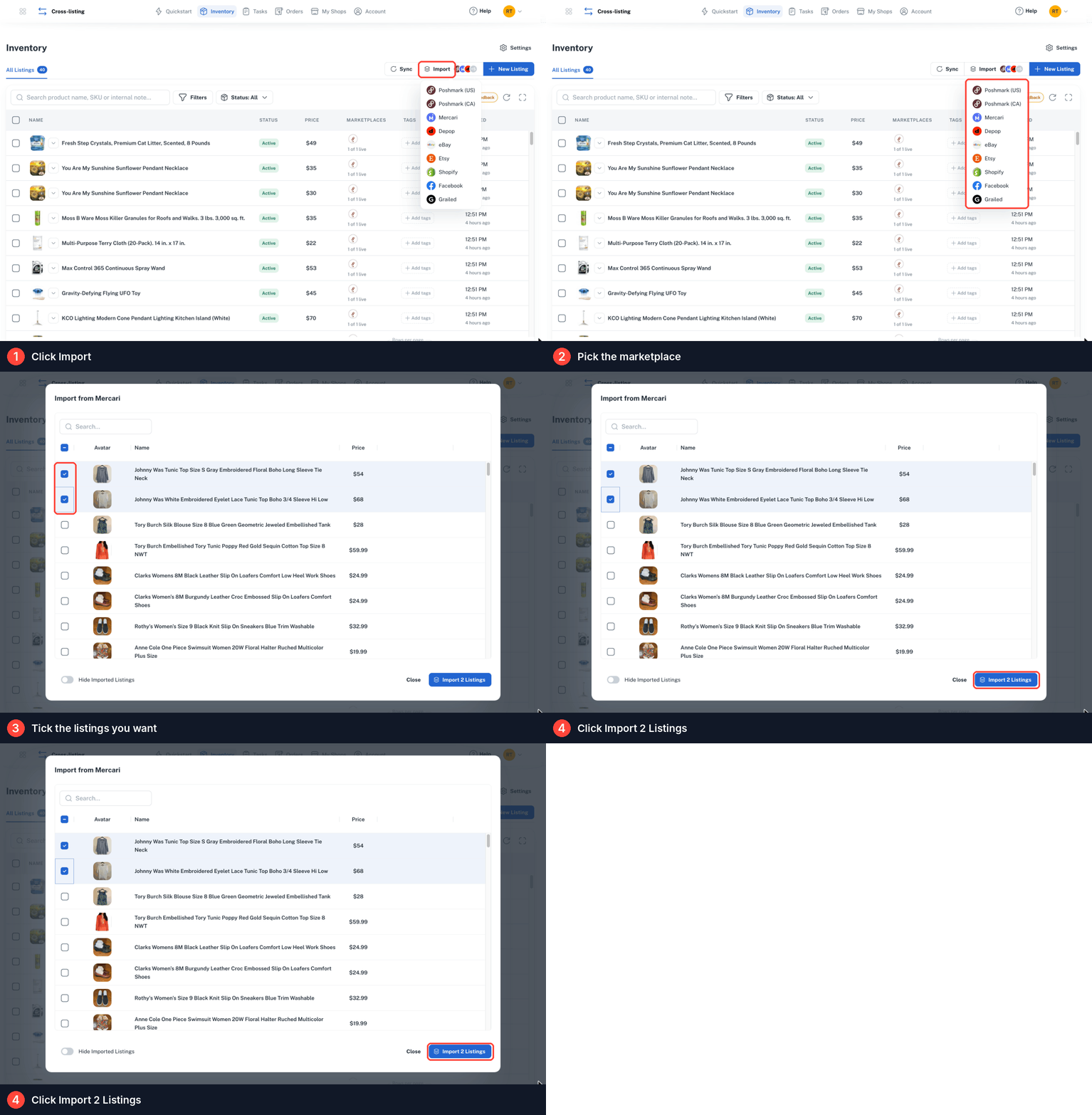
### Import specific listings

<figure><img src="https://2392323610-files.gitbook.io/~/files/v0/b/gitbook-x-prod.appspot.com/o/spaces%2FQ0VOayfDl9icXhPtyfpP%2Fuploads%2Fq7fG30CF4wLFAzqYDsel%2Fxl-import-steps.gif?alt=media&#x26;token=d107ac6a-0888-44a2-91d6-c66725217020" alt="Importing in four steps: click Import, pick the marketplace, tick the listings you want, then click Import 2 Listings" width="728"><figcaption><p>Import specific listings, step by step</p></figcaption></figure>

{% stepper %}
{% step %}

### Click Import

Click **Import** at the top right of the Inventory page and pick the marketplace.
{% endstep %}

{% step %}

### Tick your listings

Turn on **Hide Imported Listings** to hide the ones already in your inventory.
{% endstep %}

{% step %}

### Click Import N Listings

For example, **Import 2 Listings**.
{% endstep %}
{% endstepper %}

### Create a new item

{% stepper %}
{% step %}

### Click New Listing

On the [**Inventory page**](https://app.primelister.com/inventory), click **New Listing**.
{% endstep %}

{% step %}

### Add photos

The first photo is the cover.
{% endstep %}

{% step %}

### Click Auto-fill the rest

AI fills the title, description and more from your photos. See [AI listing](/crosslister-tool/create-a-listing-with-ai.md).
{% endstep %}
{% endstepper %}

### Merge copies of the same item

After each sync, Auto-Merge joins copies of the same item into one row. Nothing is deleted and every listing stays live. On the **Auto-merged** tab, click **Looks right · Keep merged**, or **Not the same** to unmerge. See [Auto-Merge and Merge Listings](/crosslister-tool/sync-and-import-listings.md#auto-merge-and-merge-listings).

<figure><img src="https://2392323610-files.gitbook.io/~/files/v0/b/gitbook-x-prod.appspot.com/o/spaces%2FQ0VOayfDl9icXhPtyfpP%2Fuploads%2FbD2zOllOc4BQ4WWJ1YoU%2Fautomerge-review-flow.gif?alt=media&#x26;token=bb6adbdd-07f7-44f2-ae96-85733b834c57" alt="Auto-Merge review flow in five steps: Review Merges on the sync banner, the Auto-merged tab, an opened merged item, the Unmerge this item? window and the item under Unmerged" width="728"><figcaption><p>Reviewing your merges</p></figcaption></figure>

## Step 5: Crosslist

<figure><img src="https://2392323610-files.gitbook.io/~/files/v0/b/gitbook-x-prod.appspot.com/o/spaces%2FQ0VOayfDl9icXhPtyfpP%2Fuploads%2FcUB1OxYXzymxnuCUfaji%2Fxl-crosslist-steps.gif?alt=media&#x26;token=f2d3777d-fe4f-4c26-899c-6a2bb41151cb" alt="Crosslisting in five steps: tick the items, click Cross-list in the bar at the bottom, pick your stores under LIST TO, click List On Shops, then check the result on the Tasks page" width="728"><figcaption><p>Crosslist, step by step</p></figcaption></figure>

{% stepper %}
{% step %}

### Select your items

On the [**Inventory page**](https://app.primelister.com/inventory), tick the items and click **Cross-list** in the bar at the bottom. For one item, click the **Crosslist** icon on its row.
{% endstep %}

{% step %}

### Choose your stores

Under **LIST TO**, pick your stores or click **Select All**. A store under **Needs action** needs **Log In** or **Fix** first.
{% endstep %}

{% step %}

### Click List On Shops

For example, **List On 1 Shop**. If an **Incomplete Draft Listing** message appears, fill in the fields it names and try again.
{% endstep %}
{% endstepper %}

See [Crosslisting](/crosslister-tool/crosslisting.md) for the full guide.

## Step 6: Check your tasks

<figure><img src="https://2392323610-files.gitbook.io/~/files/v0/b/gitbook-x-prod.appspot.com/o/spaces%2FQ0VOayfDl9icXhPtyfpP%2Fuploads%2FzC2K6U2NcFFNrNWmqOQX%2Fxl-tasks-full.png?alt=media&#x26;token=419a6b16-7850-4125-ab2b-a6f880465b8f" alt="Tasks page with the Completed and Ongoing tabs and the Result column showing Succeeded marked" width="728"><figcaption><p>Completed and Ongoing tabs and the Result column on Tasks</p></figcaption></figure>

Open the [**Tasks page**](https://app.primelister.com/tasks). Running tasks are under **Ongoing**, finished ones under **Completed**.

* ✅ **Succeeded**: the listing is live on that marketplace.
* ❌ **Failed**: open the three-dot menu, click **Check Error Details**, fix the cause and click **Retry**. See [Fix a failed task](/crosslister-tool/crosslisting.md#fix-a-failed-task) and [Retry a failed task](/crosslister-tool/retry-a-failed-task.md).

## Step 7: Edit once, update everywhere

<figure><img src="https://2392323610-files.gitbook.io/~/files/v0/b/gitbook-x-prod.appspot.com/o/spaces%2FQ0VOayfDl9icXhPtyfpP%2Fuploads%2F1uU6d2c6hNv698wptIRx%2Fxl-edit-once.gif?alt=media&#x26;token=868c3882-2b83-4254-a743-cee9ccd77450" alt="Editing in three steps: hover the item and click Edit (the pencil), change any detail such as the title, then click Save Changes so every marketplace it is listed on updates" width="728"><figcaption><p>Edit once, update everywhere</p></figcaption></figure>

{% stepper %}
{% step %}

### Open the item

On the [**Inventory page**](https://app.primelister.com/inventory), click **Edit** (the pencil) on the item.
{% endstep %}

{% step %}

### Change what you need

For example, change the **TITLE**.
{% endstep %}

{% step %}

### Click Save Changes

The change goes to every marketplace the item is listed on.
{% endstep %}
{% endstepper %}

The **INTERNAL NOTE** is private and never leaves PrimeLister. See [Edit a listing](/crosslister-tool/edit-a-listing.md).

## Step 8: Turn on Auto Delist

<figure><img src="https://2392323610-files.gitbook.io/~/files/v0/b/gitbook-x-prod.appspot.com/o/spaces%2FQ0VOayfDl9icXhPtyfpP%2Fuploads%2FclVgmb0M9L3MLG1JM7Yg%2Fxl-auto-delist.gif?alt=media&#x26;token=36b76151-fa1a-4fd4-8d63-c1030ce2c110" alt="Switching on the AUTO DELIST toggle for a connected store on My Shops, the Settings updated successfully message, and the coming soon tooltip on Grailed" width="728"><figcaption><p>Turning on Auto Delist on My Shops</p></figcaption></figure>

Switch on **AUTO DELIST** for each connected store on the [**My Shops page**](https://app.primelister.com/my-shops), or in Inventory **Settings > Auto Delist**. Changes save instantly.

* **Copies must be one item**: copies are delisted together only when they are one row in your Inventory. Auto-Merge does this after each sync.
* **One store per marketplace**: Auto Delist works on one store or closet per marketplace.
* **Not supported yet**: Grailed and Facebook Marketplace are coming soon.

See [Auto Delisting](/crosslister-tool/auto-delisting.md).

## Frequently asked questions

### Do I need to keep my computer on?

Keep Chrome open while you start a crosslist. Poshmark, eBay, Mercari, Depop and Shopify crosslists then finish on PrimeLister's servers, but Etsy, Facebook Marketplace and Grailed need Chrome open until they finish. See [Where crosslisting runs](/crosslister-tool/crosslisting.md#where-crosslisting-runs).

### Can I connect more than one store of the same marketplace?

Yes for eBay and Shopify: use **Add eBay account** or **Add Shopify store** on **My Shops**, then **Switch Account** to pick the default. Poshmark (US) and Poshmark (CA) each have their own row. See [Connect your stores](/crosslister-tool/connect-your-stores.md).

### Can I crosslist from my phone?

No. The PrimeLister mobile app creates drafts, and you crosslist them from Chrome on your computer. See [Create listings on your phone](/crosslister-tool/create-listings-on-your-phone.md).

### Can I switch between monthly and yearly?

Yes, both ways: open **Account > Plans & Billing** and click **Update Plan** on the Crosslister Tool card. Unused time is added to your balance. See [Subscribe and change your plan](/subscriptions/change-your-plan.md).

## Next step

Ready to set up in detail? Start with [Connect your stores](/crosslister-tool/connect-your-stores.md) to see every status, column and option on My Shops.

**Need help?** See [Crosslister troubleshooting](/crosslister-tool/crosslister-troubleshooting.md) or [chat with our team](/help-center/contact-support.md) in the [**PrimeLister app**](https://app.primelister.com).